Running out of storage space on a Windows 11 computer can be frustrating, especially when you are not sure which files are safe to remove.
A nearly full drive can also make it harder to install Windows updates, download new applications, save large files, or maintain enough free space for normal system operations.
The good news is that you usually do not need to delete your personal photos, documents, or other important files to recover several gigabytes of storage.
In this guide, we will look at practical ways to identify what is using your storage and safely remove unnecessary files from Windows 11.
Why Is Your Windows 11 Drive Running Out of Space?
Before deleting anything, it is useful to understand what is consuming your storage.
Windows 11 may use significant amounts of disk space for:
- Temporary files
- Windows Update files
- Recycle Bin contents
- Installed applications
- Downloads
- Large videos and photos
- Previous Windows installation files
- Browser cache
- System restore data
- Offline files
- Files created by applications
Instead of randomly deleting folders, start by allowing Windows to show you where the storage is being used.
Step 1: Check What Is Using Your Storage
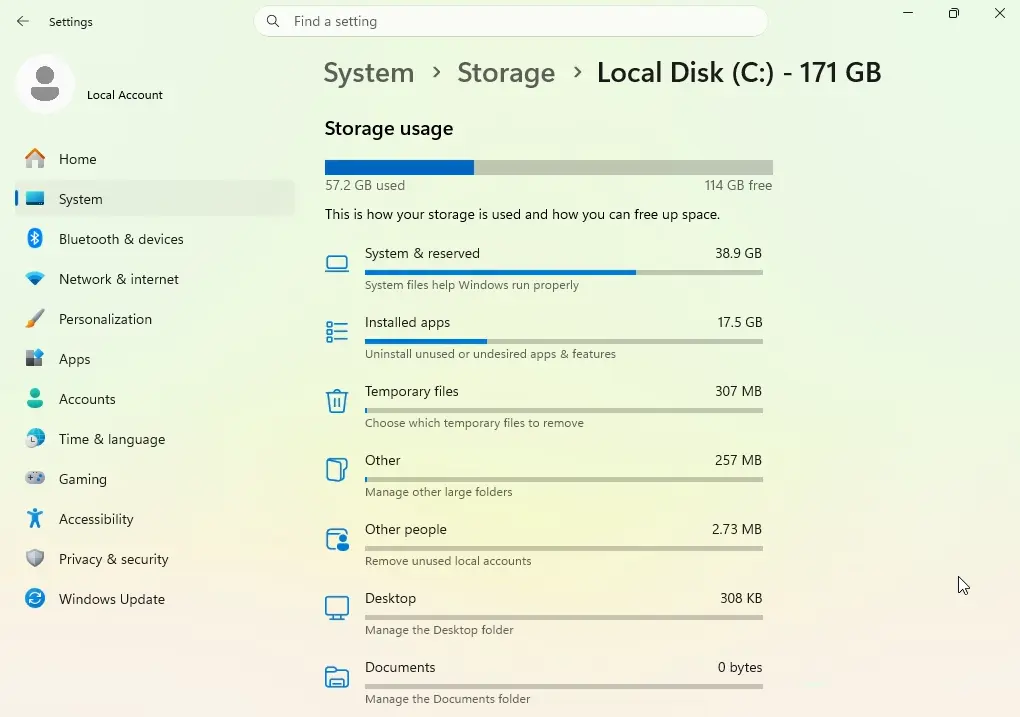
Windows 11 includes a built-in storage management page.
Open:
Settings → System → Storage
Windows will calculate how your storage is being used and divide it into categories such as:
- Installed apps
- Temporary files
- Documents
- Pictures
- Videos
- Music
- Other
- System and reserved
This is one of the safest places to begin because it gives you an overview before you remove anything.
Look for unusually large categories
If “Apps” is using a large amount of space, you may have several programs that you no longer use.
If “Videos” or “Pictures” is large, consider moving older files to another drive or cloud storage rather than deleting them.
If “Temporary files” is unusually large, Windows may be able to remove several gigabytes without affecting your personal files.
Windows 11 Storage settings show how disk space is being used across different categories.
Step 2: Use Windows 11 Temporary Files Cleanup
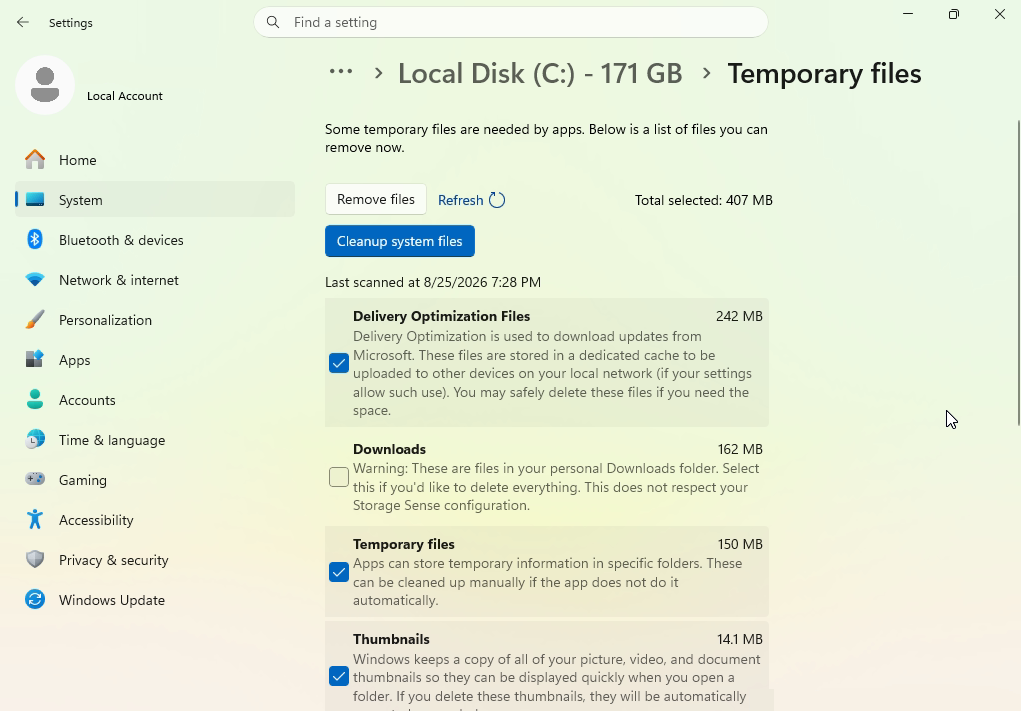
From:
Settings → System → Storage → Temporary files
Windows will scan your computer and display categories of files that can potentially be removed.
Depending on your system, you may see:
- Temporary files
- Windows Update Cleanup
- Delivery Optimization Files
- DirectX Shader Cache
- Thumbnails
- Recycle Bin
- Temporary Internet files
- Previous Windows installation(s)
Review the list carefully before selecting anything.
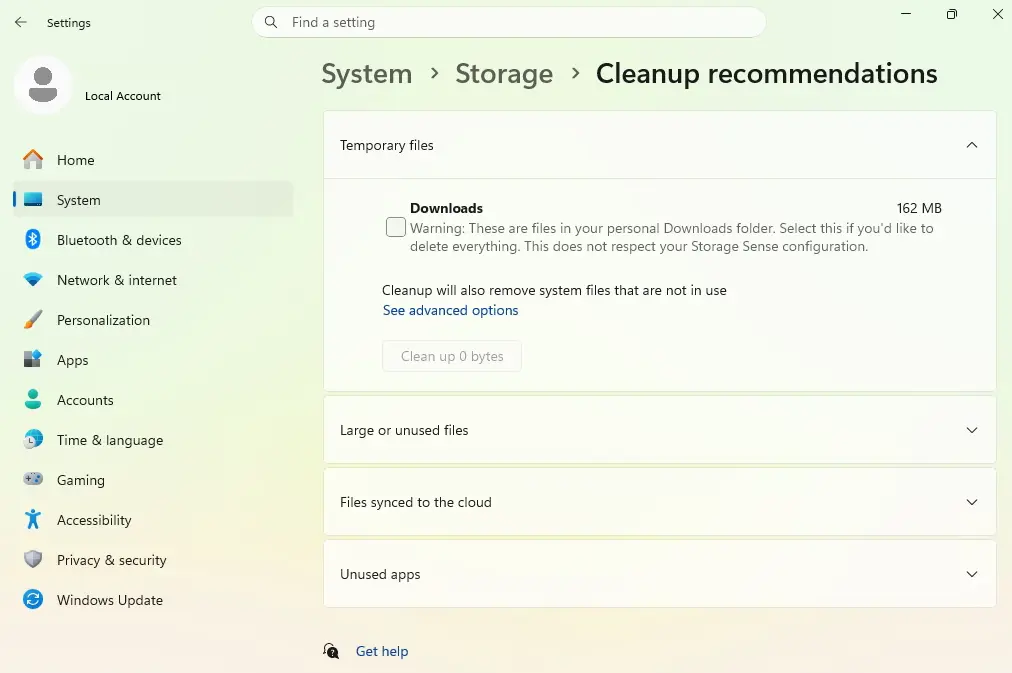
Be careful with Downloads
The Downloads folder can contain important files that you downloaded from the internet.
If Windows offers to remove Downloads as part of a cleanup, do not select it unless you have already reviewed the folder and confirmed that you no longer need its contents.
This is one of the most important precautions when using automatic cleanup tools.
Step 3: Empty the Recycle Bin
Files moved to the Recycle Bin still occupy storage space.
If you are certain that you no longer need the deleted files:
- Right-click the Recycle Bin.
- Select Empty Recycle Bin.
- Confirm the operation.
If you are not sure whether you may need something later, open the Recycle Bin and review its contents first.
Step 4: Remove Applications You No Longer Use
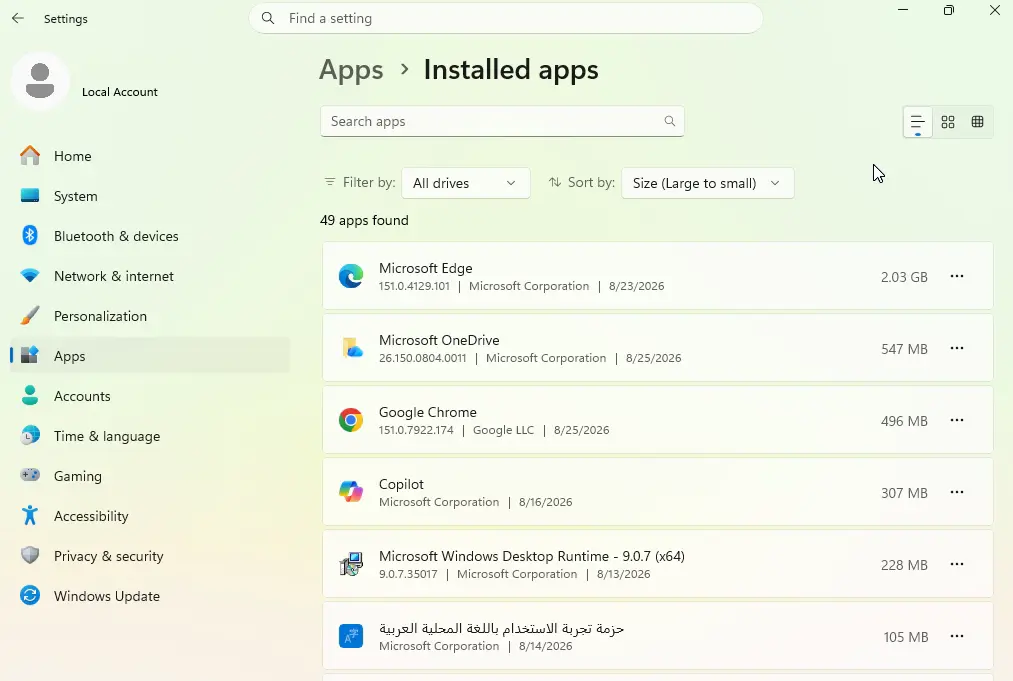
Installed applications can consume much more storage than temporary files.
Go to:
Settings → Apps → Installed apps
Review the applications installed on your computer.
Look for software that you no longer use, particularly:
- Old games
- Trial software
- Duplicate applications
- Unused utilities
- Programs installed for a temporary project
Before uninstalling a program, make sure you know what it does.
Do not remove system components simply because their names are unfamiliar.
Sort applications by size
Windows allows you to sort installed applications by size.
This makes it easier to identify programs that are consuming significant amounts of storage.
If you discover a very large application that you no longer need, uninstalling it can recover much more space than deleting hundreds of small files.
Step 5: Clean Up Your Downloads Folder
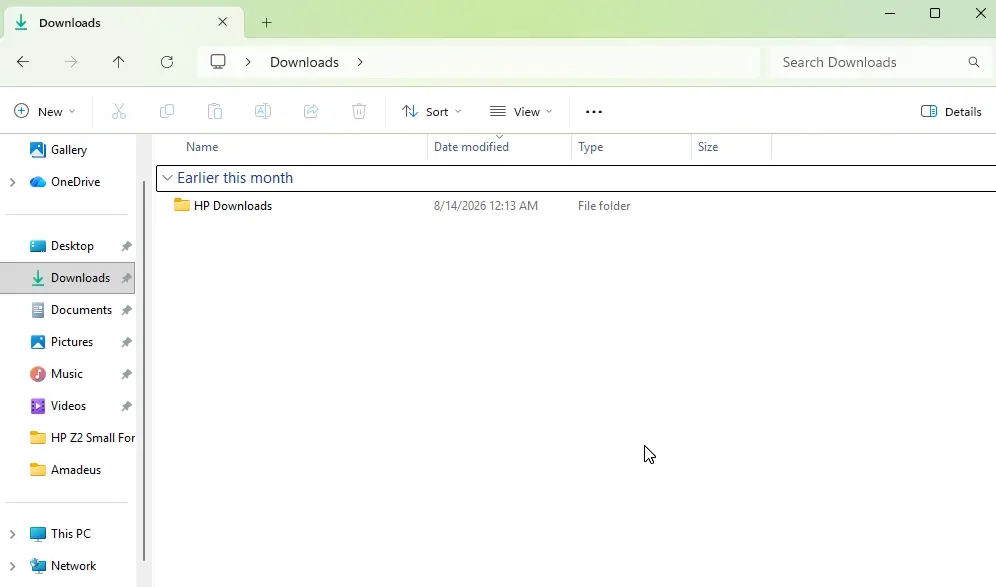
The Downloads folder often becomes one of the largest forgotten folders on a computer.
Open:
File Explorer → Downloads
Change the folder view to show file sizes and sort the files by size or date.
Look for:
- Old installers
- ZIP archives
- Duplicate documents
- Old videos
- Large ISO files
- Files that were downloaded only once and are no longer needed
Do not delete everything simply because it is old.
Instead, review large files individually and move anything important to another storage location.
Step 6: Find Large Files on Your PC
Windows File Explorer can help you locate unusually large files.
Open File Explorer and select the drive you want to examine.
You can use the search options to look for large files and then review them before deciding whether they can be deleted or moved.
Large video files, installation packages, virtual machines, backups, and compressed archives can consume tens or even hundreds of gigabytes.
A safer approach
Instead of immediately deleting large files:
- Identify the file.
- Determine which application created it.
- Confirm that you no longer need it.
- Check whether it is backed up.
- Move it to another drive if you want to keep it.
- Delete it only when you are certain.
This approach reduces the risk of accidentally removing important data.
Step 7: Move Large Personal Files Instead of Deleting Them
If your computer has limited internal storage, deleting personal files may not be the best solution.
You can move large files to:
- An external SSD
- An external hard drive
- Another internal drive
- A network storage device
- A reputable cloud storage service
For example, a collection of large video files can consume hundreds of gigabytes while being accessed only occasionally.
Moving archived files to another storage location can free space while keeping the files available.
Step 8: Turn on Storage Sense
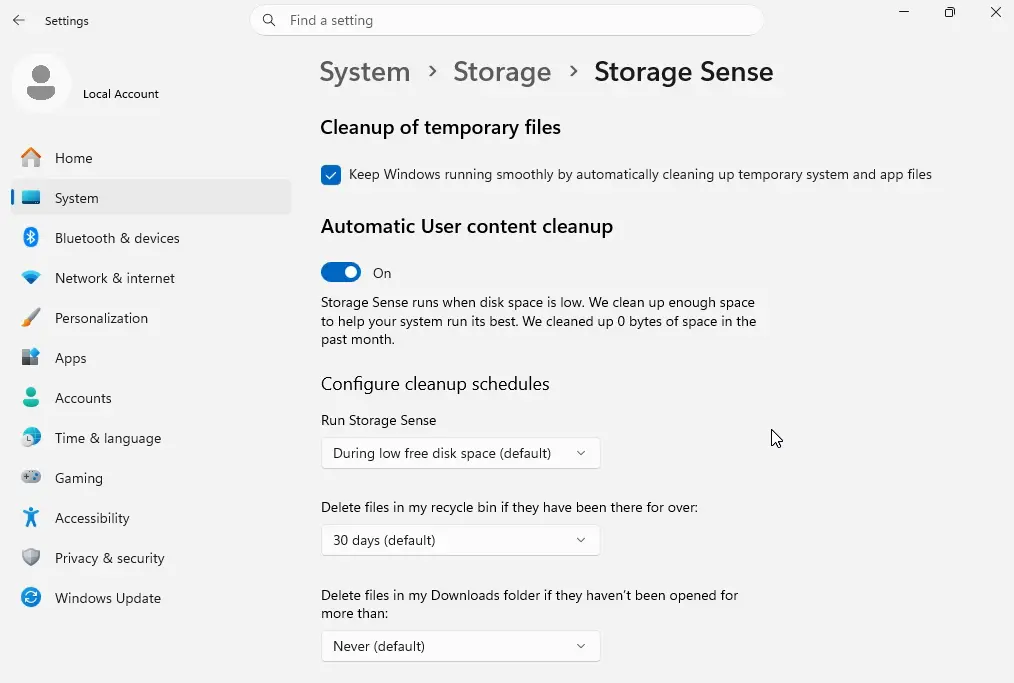
Windows 11 includes a feature called Storage Sense that can automatically manage certain temporary files.
Go to:
Settings → System → Storage → Storage Sense
Storage Sense can help Windows automatically remove unnecessary temporary files and manage certain items such as files in the Recycle Bin.
Review the available settings before enabling automatic cleanup.
The goal is to automate the removal of files that are genuinely unnecessary while avoiding personal files that you may still need.
Step 9: Check Cloud-Synchronized Folders
Cloud storage applications can sometimes keep large numbers of files available locally.
If you use a cloud service, review whether files are being stored locally when they do not need to be.
Depending on the service and its settings, some files can be kept online while reducing their local storage footprint.
However, do not delete local copies blindly.
Make sure the files are successfully synchronized and available from the cloud before removing their local versions.
Step 10: Remove Old Windows Installation Files Carefully
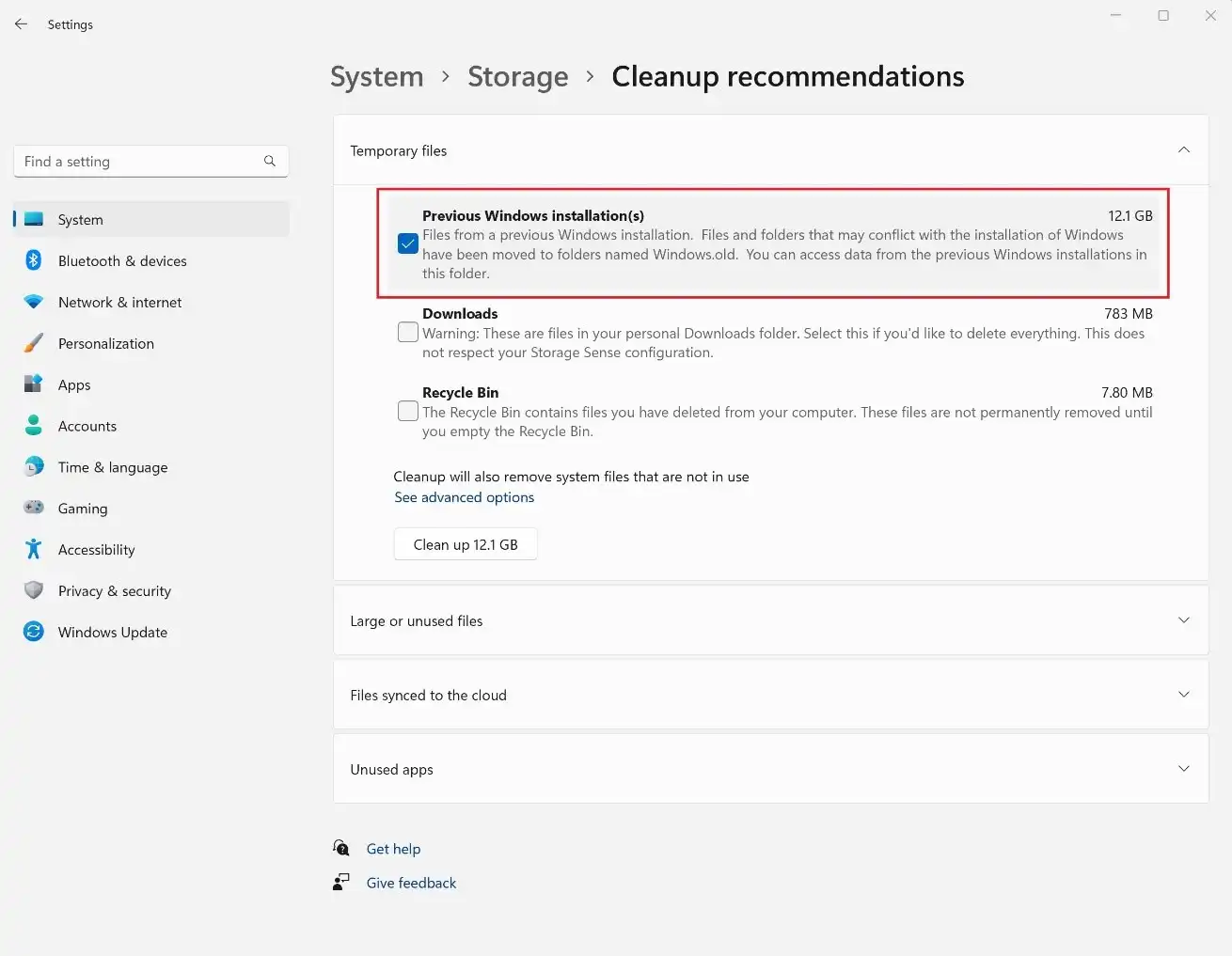
After a major Windows upgrade, your computer may retain files from the previous Windows installation.
These files can occupy a significant amount of disk space.
Windows may make them available through the Temporary files cleanup area.
Before removing previous installation files, remember that they can sometimes be useful if you need to return to an earlier Windows installation.
If you are completely satisfied with your current Windows installation and no longer need the previous version, removing these files can recover substantial storage.
Microsoft — Delete Previous Windows Installation(s)
Delete the Windows.old folder using Storage Sense — Microsoft Support
Step 11: Restart Your Computer After Cleanup
After completing a major cleanup, restart Windows.
A restart allows Windows and running applications to release temporary resources and complete certain maintenance operations.
After restarting, return to:
Settings → System → Storage
and check how much free space you now have.
How Much Free Space Should You Keep?
There is no single number that is ideal for every computer.
The amount of free space you need depends on:
- The total capacity of the drive
- How Windows is configured
- The applications you use
- Whether you install large games
- How frequently you receive Windows updates
- Whether you work with large media files
As a practical rule, avoid allowing your system drive to remain almost completely full.
A drive with very little free space can make routine maintenance and software updates more difficult.
What You Should Never Delete Manually
One of the biggest mistakes when trying to free storage is deleting unfamiliar system folders.
Do not randomly delete folders from locations such as:
- C:\Windows
- C:\Program Files
- C:\Program Files (x86)
- System folders
- User profile folders you do not recognize
If you do not know what a folder does, research it before removing it.
Using Windows’ built-in storage management tools is generally safer than manually deleting unknown system files.
A Better Long-Term Storage Strategy
Freeing space once is useful, but preventing the problem from returning is even better.
Consider these habits:
Review Downloads regularly
Delete installers and files that you no longer need.
Store large archives elsewhere
Move old videos, photographs, and project files to appropriate long-term storage.
Uninstall unused applications
Every few months, review your installed applications.
Enable Storage Sense
Allow Windows to handle appropriate temporary files automatically.
Monitor storage usage
Check the Windows Storage page occasionally instead of waiting until the drive is almost full.
Final Thoughts
You do not have to delete important personal files just because your Windows 11 computer is running out of storage.
Start by checking the Storage page in Windows 11 to understand where your space is being used. Then remove temporary files, review applications, clean up unnecessary downloads, empty the Recycle Bin, and move large personal files to another storage location when appropriate.
The safest approach is to understand what is consuming your storage before deleting anything.
If you regularly monitor your storage and remove unnecessary files, you can avoid waiting until your Windows drive reaches critically low free space.
Frequently Asked Questions
Does freeing storage make Windows 11 faster?
It can help when the system drive is extremely full, but storage cleanup is not a guaranteed solution for every performance problem. Slow performance can also be caused by insufficient RAM, background applications, malware, hardware limitations, or other issues.
Can I delete temporary files in Windows 11?
Many temporary files can be safely removed using Windows’ built-in Temporary files cleanup feature. Always review the categories before confirming the cleanup.
Should I delete everything in the Downloads folder?
No. The Downloads folder may contain important documents, installers, photographs, and other files. Review its contents before deleting anything.
Is it safe to delete files from the Windows folder?
You should not manually delete unfamiliar files from the Windows system directory. Use Windows’ built-in cleanup tools whenever possible.
What should I do if my Windows drive is still full after cleanup?
Check the Storage settings again and identify the largest categories. You may need to uninstall large applications, move personal files to another drive, or upgrade the storage capacity of the computer.
Official Microsoft Resources
Microsoft — Storage Settings
Storage settings in Windows — Microsoft Support
Microsoft — Storage Sense
Manage drive space with Storage Sense — Microsoft Support
Microsoft — Free up drive space
Free up drive space in Windows — Microsoft Support